CN

×

keywords:

xxxx1 xxx2 xxx3 xx4 copy
Shenzhen Meiyad Optoelectronics Co., Ltd. Shenzhen Meiyad Optoelectronics Co., Ltd.

News

First Day of Metaverse Expo, Meiyad CAVE-R Immersive XR LED Screen Shines Throughout the Venue!

11
05
2024

2024 Digital Signage & Metaverse Ecology Expo

The Digital Signage & Metaverse Ecology Expo, organized by Guangdong Hongwei International Exhibition Group Co., Ltd. and Guangzhou Virtual Reality Industry Association, is held annually from May 10th to 12th at the Guangzhou Convention and Exhibition Center. It serves as a professional trade platform across industries such as the metaverse, digital display, digital cultural tourism, digital art, digital sports, scene design, animation games, and trendy toys, covering the upstream, midstream, and downstream sectors.


First Day of Metaverse Expo, Meiyad CAVE-R Immersive XR LED Screen Shines Throughout the Venue!


Shenzhen Meiyad Optoelectronics Co., Ltd. focuses on innovative development in the field of flexible LED screens and irregular customized LED screens. Meiyad independently develops a full range of flexible LED screen products and is the first company in the flexible screen industry to break through the 1.5mm pixel pitch. By integrating flexible technology and nano-coating technology, it has developed the XR-Immersive Virtual Interactive Experience Space, redefining the immersive form with the new standard "Curved CAVE". Meiyad adheres to the development concept of "continuous innovation," committed to promoting the continuous development of flexible LED screen technology and maintaining a leading position in the industry.


Metaverse Expo On-Site

On the first day of the expo, Meiyad attracted numerous attention and crowds flooded the venue. The booth was constantly inquired, becoming the focus of many exhibitors and visitors!


First Day of Metaverse Expo, Meiyad CAVE-R Immersive XR LED Screen Shines Throughout the Venue!

First Day of Metaverse Expo, Meiyad CAVE-R Immersive XR LED Screen Shines Throughout the Venue!

First Day of Metaverse Expo, Meiyad CAVE-R Immersive XR LED Screen Shines Throughout the Venue!


Elite Exchange, Cutting-Edge Product Negotiations

With its outstanding brand influence and R&D capability to innovate products, Meiyad successfully attracted customers from all over the world to the expo, appreciating its exhibits and discussing project application solutions.


First Day of Metaverse Expo, Meiyad CAVE-R Immersive XR LED Screen Shines Throughout the Venue!

First Day of Metaverse Expo, Meiyad CAVE-R Immersive XR LED Screen Shines Throughout the Venue!

First Day of Metaverse Expo, Meiyad CAVE-R Immersive XR LED Screen Shines Throughout the Venue!


Immersive CAVE-R XR LED Screen Solution

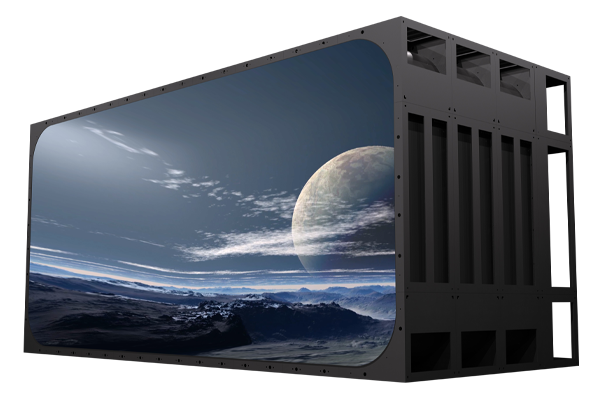
Traditional CAVE-R achieves immersive effects through (four-fold screens/five-fold screens/six-fold screens), while Meiyad's new CAVE-R XR LED screen display technology adopts the industry's smallest pitch P1.5 irregular soft LED module design. The floor tiles adopt CNC+GOB technology and can be used as floor tile displays, far surpassing similar products in the industry.


CAVE-R display technology creates an immersive VR environment through curved and cylindrical shapes, allowing viewers to immerse themselves in a lifelike VR environment from any angle and solving the problem of single-angle immersive viewing in traditional CAVE.


Advantages of CAVE-R Immersive XR LED Screen

As an important application of metaverse immersive technology, the design of CAVE-R embodies the perfect combination of advanced technology and art. It aims to provide users with a seamless and multidimensional immersive space, bringing users a comprehensive immersive experience. Its advantages include high brightness, high refresh rate, good grayscale, extended curvature of XR products, unlimited heightening, irregular module design, perfect transition of bottom curvature corners, support for 8K ultra-high resolution, active 3D effect solutions, and more, leading the industry.


Application Scenarios of CAVE-R Immersive XR LED Screen

Metaverse immersive CAVE-R can be applied in urban exhibition halls, cultural tourism interaction, immersive light and shadow, psychological rehabilitation, virtual shooting, virtual teaching, live broadcasting of events, exhibition displays, and other application scenarios.


Shenzhen Meiyad Optoelectronics Co., Ltd. has been dedicated to "innovation shaping the future" since its inception, growing and progressing amidst the ever-changing waves. With "innovation" as our core philosophy, we not only explore endless possibilities in the metaverse field but also warmly welcome exhibitors from different industries to join us. We sincerely invite you to visit our booth at Hall B502, Area 10.1, of the Canton Fair Exhibition Hall, to experience this important industry event together and make it a great success. We look forward to your participation, jointly witnessing and shaping the future.


You May Also Like

Meiyad Continues to Shine on Day 2 of SEAMEX 2026 in Malaysia

22|05|2026

Meiyad Continues to Shine on Day 2 of SEAMEX 2026 in Malaysia

Today marks the second day of SEAMEX 2026 in Malaysia, and Meiyad continues to attract strong attention from visitors, partners, and industry professionals across Southeast Asia.At Booth A033, Meiyad is showcasing a wide range of innovative LED display solutions, including the high-end SK Rental LED Screen, COB LED displays, SMD LED displays, and GOB LED display technologies. These products demonstrate Meiyad’s professional capabilities in stage rental, commercial display, cultural tourism, and immersive audiovisual applications.Throughout the exhibition, Meiyad’s booth has welcomed many customers and industry partners who showed great interest in the outstanding visual performance, seamless display quality, and creative customization solutions of our LED displays. The event also provides an important platform for Meiyad to strengthen cooperation with Southeast Asian clients and further expand our presence in the regional market.As SEAMEX 2026 enters its final day tomorrow, Meiyad warmly welcomes more visitors to Booth A033 to explore our latest LED display technologies and discuss future cooperation opportunities.We sincerely appreciate the support and trust from all customers, partners, and visitors, and we look forward to creating more innovative audiovisual experiences together.Exhibition: SEAMEX 2026Booth: A033Location: Borneo Convention Centre Kuching, Malaysia

LED Display Screen Software Installation and Debugging Tutorial

20|05|2026

LED Display Screen Software Installation and Debugging Tutorial

Software Installation, Login & Screen ConfigurationDownload & InstallationOfficial website download:Visit NovaStar official website(www.novastar-led.cn or https://www.novastar.tech) → Support → Software Download, and download the latest version of NovaLCT (recommended v5.5.0 or above).Installation steps:I. Double-click the installation package.II. Use the default installation path.III. Complete installation.IIII. Disable antivirus software temporarily to avoid accidental blockingDevice ConnectionSynchronous System (Direct Network Cable Connection)Step 1: PC → Sending Card: Connect directly via USB cable; or Connect through the same LAN using network cable. (Default IP range: 192.168.0.xxx / 192.168.1.xxx)Step 2: Sending Card → Receiving Card: Cascade via network cables. Receiving card connects to the LED screen HUB board.Asynchronous System (WiFi Direct Connection)Step 1: Connect PC/mobile phone to the player box WiFi (Default SSID: AP + last 8 digits of SN, Password can be found on the device label); or connect through the same LAN.Step 2: Connect the player box to the HUB board (receiving card) and power on.Software LoginStep 1: Open NovaLCT,Click Login→Advanced Synchronous Login,Default password:666 or admin.Step 2: Successful connection message: "Control System 1, No Display Screen"; If connection fails, check wiring and check power supply.Smart ConfigurationStep 1: After login, enter Screen Configuration → Smart Settings.Step 2: Select Chip model, Decoding method, Module size (e.g. 172x86), click Next stepStep 3: Follow the screen instructions: Bright line direction→Color matching→Pixel-by-pixel calibration, generate configuration file (.scfg).Step 4: Click Send to apply parameters to the receiving card.Manual ConfigurationStep 1: Receiving Card Parameters: Enter Receiving Card → Port Configuration → Set width, height, number of data groups, and scan mode (e.g. 1/32 scan).Step 2: Sending Card Resolution: Enter Sending Card → Output Resolution → Enter actual screen resolution (e.g. 1920×1080) → Enable scaling → Click Send.Step 3: Load Configuration File: Supports local (.scfg/.zip) or cloud configuration files. Allows quick parameter reuse. [__LINK_ICON].Program Creation & Publishing (Asynchronous System)Pingjl Installation & OperationStep 1: Download Pingjl from the official website. Double-click the installation file and follow the Pingjl. After first launch, select "Asynchronous Playback" mode. Click "Start Now".Step 2: Open Pingjl and add devices: (Search LAN/WiFi devices, Default password: admin).Step 3: Create a new program: Program Management → New Program. Set resolution matching the screen.Step 4: Add media: Support Add media, Videos (MP4/AVI), Text, Clock, Weather forecast.Step 5: Edit attributes: Playback duration, Transition effects, Loop mode, Multi-layer overlay supported.Program PublishingStep 1: Select the program→Click Publish→Select target terminal→Confirm sending.Step 2: After successful publishing, the player box automatically loads and plays the program. If publishing fails, check network connection→Check device storage.Device Management, Maintenance & Firmware UpgradeFirmware UpgradeEnter Program Upgrade→Connect to the Internet, Select cloud upgrade, Choose corresponding sending card / receiving card firmware, Wait for completion, Do not power off during upgrade.Offline Upgrade:Import local firmware package (.bin), batch upgrade devices:Step 1: Login through "Login → Advanced Synchronous Login",enter password admin or 666. (For asynchronous products (JT/TB series), select Media Player Login)Step 2: Type "admin"or "666888" on the main interface.Step 3: Select communication port. If you need to reconnect the sending card, click "Reconnect".Step 4: Select the range to view, click "Refresh" to view the current software version of the hardware.Refresh All: View all sending/receiving card versions.Specified Refresh: View the software versions of the specified sending and receiving cards.PS: Simply click "Refresh All" on the screen to view the receriving card model and firmware version.Identifying Driver & Decoder Chips:Please refer to the information on the back of the module or on the packaging (you may also contact the relevant project manager for confirmation)Check IC markings on the back of the moduleObtain information according to the correct configuration file provided by the manufacturer:Step 1: In the "Screen Configuration" dialog box on the main LCT interface, select the "Receiving Card" tab.Step 2: Load the correct configuration file provided by the screen manufacturer from the local computer:a. Click "Load from Local";b. Select the configuration file and click "Open";c. After the file is successfully loaded, click "OK".Step 3: Click "View Cabinet" to check the information in the pop-up dialog box.Obtain the Corresponding Correct Firmware Program:You can directly access the public resources through the following links:Novastar Database http://gts.novastar.tech:6150/sharing/oLGDYny5ENovastar Overseas Database http://gts.novastar.tech:6150/sharing/CZRitU08hStep 1: Directly access the Nova database mentioned above.Step 2: From the homepage, follow the path:"Firmware Program > Receiving Card”to enter the receiving card model classification page.Step 3: According to the Nova receiving card model confirmed above, enter the corresponding receiving card page. The following examples use DH-LCE7516 / FS-LCE7516 / MRV416.Step 4: According to the confirmed driver IC and decoder IC used on the module, search for the corresponding firmware in the order of 1, 2, 3, and 5.(Option 4 is firmware for the 99-series chips, and 99-series chips can be searched directly.)OverviewUsing the example above, each folder contains the corresponding firmware and descriptions of the supported chips. You can check the descriptions to identify the driver IC and decoder IC used on your module, and then determine which firmware should be used.Based on the confirmed Nova receiving card model and the driver/decoder ICs used on the LED module, you can find the correct corresponding firmware.Screen MonitoringMonitoring → Device Status:Check temperature, voltage, network cable connection, signal source, and abnormal alarm notifications.Preset Screen: Tools → Preset Screen SettingsSet the display image when the signal is lost or disconnected (such as black screen or fixed logo).TroubleshootingUnable to connect to the deviceCheck USB/network cable, power supply, and IP segment; disable the firewall.Screen garbled/flickeringVerify receiving card parameters, network cable quality, and HUB board (receiving card) wiring; resend the configuration.Program playback abnormalCheck media format and resolution compatibility; restart the player box or republish the program.

Send Your Inquiry Today

Factory Direct LED Screen - Fast Quote, Best Price!

Please enter your company name
Please accept the data protection information

I have read and understood the  data protection   information.